How to set up your shift pattern
Your shift pattern is the one thing WorkLife needs from you. Once it's set, your calendar fills itself for months ahead and Today shows your next shift. With WorkLife Pro, create an automatic alarm with a fixed clock time and select the working shift types it should follow. Its dates follow matching shifts in your current schedule. Standalone alarms and older independent alarms keep their own schedules unless you explicitly change them.
Until it's set, Today says “No pattern set” and the calendar stays empty.
Where to find it
- On Today: until you have a pattern, Today shows “Set up your shift pattern to see your countdown.” Tap Set up, then +. This is the easiest way in.
- When you first open WorkLife, the setup asks “What's your rhythm?” Pick yours there and you're done.
- Any time: open Settings → Patterns, then tap +.
Each of these opens “Add a Pattern”. If you chose “I don't have a fixed pattern” during setup, Today won't show the Set up button, so use Settings → Patterns → + when you're ready.
The fastest way: pick a ready-made pattern
- On Today, tap Set up, then +. (Or go to Settings → Patterns → +.)
- Under “Most common”, tap the one that matches your rota, for example Rotating 12h · 3 Days / 3 Nights / 6 Off or Weekly 8h · 5 Days / 2 Off. Not there? Scroll to “Industry rotations”, or type in the search box (try “nights” or “4 on”).
- The “New Pattern” screen shows your rotation in blocks, with a “next 60 days” preview. Use − and + on a block to make it shorter or longer, or open a block to change its shift or hours.
- Tap Next, then answer “What are you doing today?” (see the step to get right below).
- Tap Use This Pattern. That's it.
Build your own
If no ready-made pattern fits, build yours from blocks. A block is a run of the same shift, like “3 Days”. Most rotas are just two to four blocks.
- On Today, tap Set up, then + (or Settings → Patterns → +), and tap Build your own.
- Tap Add a block.
- Under “Shift”, pick the shift: Day, Night, Off, and so on.
- Under “Length”, use + and − until it shows how many you work in a row, for example “3 days in a row”.
- For a working shift, check the Starts and Ends times and any break.
- Tap Add. Repeat for each block in order. For example, 3 Days, then 3 Nights, then 6 Off.
- Check the “next 60 days” preview, then tap Next, choose today, and tap Use This Pattern.
The step to get right: “What are you doing today?”
Your pattern repeats in a cycle. WorkLife needs to know where in that cycle you are today, so every future day lines up.
After you tap Next, you'll see your cycle as tiles: Day 1, Day 2, Day 3… Tap the tile that matches today. It then changes to say “Today”.
Example. Your rota is 3 Days / 3 Nights / 6 Off, and tonight is your first night shift. The first nights come after the three days, so tap Day 4, the first Night tile.
If today is a day off in the middle of your break, count along the Off tiles to the right one.
Know the exact date your cycle started? Open “I know my cycle's exact start date” and pick it instead. Either way gives the same result.
The “Check it — your next 60 days” preview updates as you tap. Make sure tomorrow and next week look right, then tap Use This Pattern.
Got a pattern from a friend?
If someone on your rota uses WorkLife, they can share their pattern with you. Go to Settings → Patterns → +, tap From a friend — scan or paste, then scan their QR code or tap Paste Code. You still choose your own “today”, because your place in the cycle may be different from theirs.
After you tap “Use This Pattern”
- You're back on “Your patterns”, with your pattern marked IN USE.
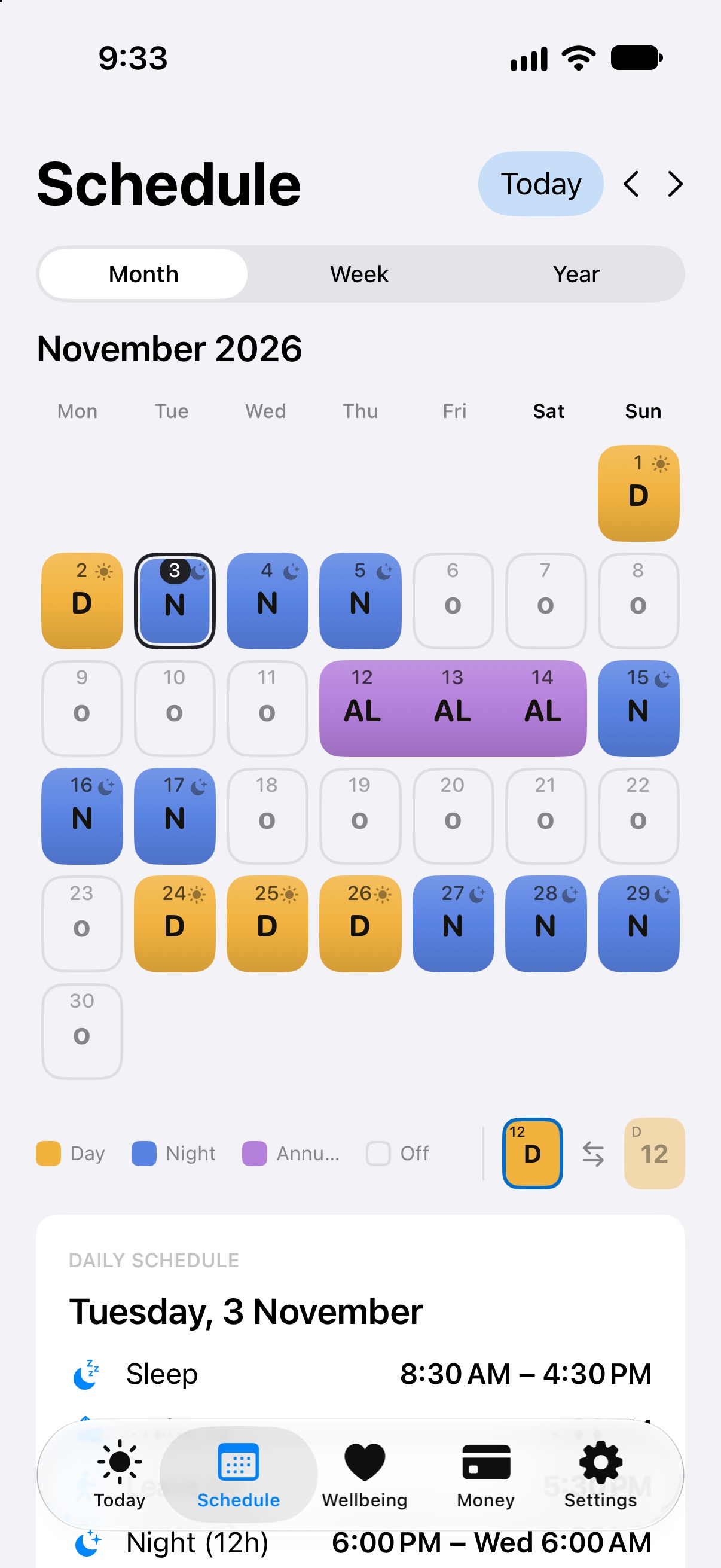
- The Schedule calendar fills with your shifts.
- Today counts down to your next shift.
- Automatic alarms are part of WorkLife Pro. In Settings → Automatic alarms, choose an exact clock and working shift types. The dates follow the current schedule, including pattern edits, while the clock stays fixed. Choose the previous day, shift-start day or next day relative to the date the shift starts. Standalone alarms and personal routine clocks remain independent. Existing saved alarms keep their scheduling mode unless you explicitly convert them and save.
Made a mistake?
Go to Settings → Patterns, tap your pattern, change what you need, tap Next, check today, then tap Save Changes.
My calendar is still empty
- Today says “No pattern set”: you haven't set one yet. Follow the steps above.
- The days are in the wrong place: the “today” step was off. Open your pattern, tap Next, choose today again, and tap Save Changes.
- You've saved more than one pattern: only one is used at a time, marked IN USE. Open the one you want in Settings → Patterns and tap Use This Pattern.
- Alarms don't ring: see My alarm didn't ring.
Still stuck? Email imkalakandan@gmail.com.