Getting started
The first time you open WorkLife, a short setup asks a few questions and then hands you a Today page with your next shift and the daily times you saved. This page walks through exactly what it asks. Nothing here is final — you can change any of it later.
1 · Welcome
The first screen is “A calm planner for any schedule.” It lists the three things WorkLife does — your rota on a calendar, alarms for your shifts, and money that understands shift work — with no WorkLife account. Data is stored on your phone; iCloud backup is optional.
Tap Get started. (Already used WorkLife on another phone? Tap Restore previous data instead, and bring your backup in — you won't have to answer any of this again.)
2 · What's your rhythm?
This is the one real choice in setup. Pick the row that matches how you work:
- Just my next shift — start with a single shift and decide the rest later. This is the quickest way in.
- A ready-made rotation such as 6/6 — 3D 3N 6 off, 4 on, 4 off, 2-2-3 or General shift — tap one and WorkLife builds the whole pattern for you.
- Build your pattern — make any cycle, day by day. See the Pattern guide for this.
- I don't have a fixed pattern — add shifts as they come, with no repeating rota.
You can change this any time in Schedule, so pick the closest fit and move on.
3 · When's your next shift?
If you chose Just my next shift, this step asks for it. Tap the kind of shift — Day, Night, and so on — then check the Date, Starts and Ends times underneath. They fill in with sensible defaults for the shift you picked; adjust any that are wrong. Tap Continue.
If you picked a ready-made rotation instead, WorkLife takes you straight into that pattern and asks where today falls in the cycle — the one step people get wrong, explained in the Pattern guide.
4 · Your day
The last step is “Your day”. Tap Set wake, leave & sleep times to choose your times. Personal routine clocks are saved separately from alarms. Changing a sleep time or sleep-duration goal does not move an alarm. You can edit these later in Settings → Wake, leave & sleep, under Your day.
Your calendar, one saved pattern and your own alarms are free. Money, Wellbeing and automatic shift alarms require WorkLife Pro. Installing the app does not start a trial. To subscribe, open Settings → Plan → Upgrade; Apple shows the available price and any eligible one-month free trial before you confirm. Tap Finish to complete setup.
That's it — you land on Today
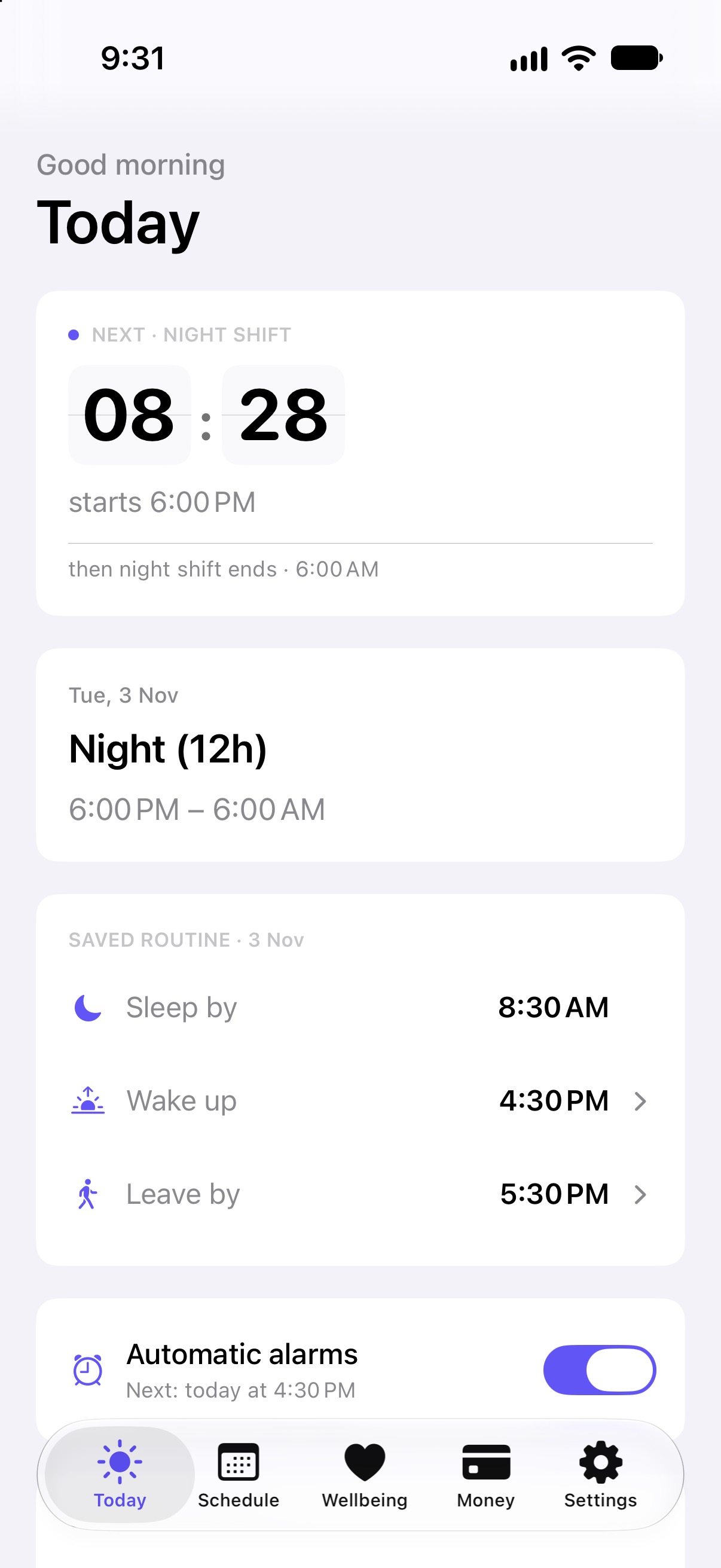
Setup closes and you're on the Today tab. It already shows:
- a countdown to the next event in your shift day;
- today's shift and its hours;
- Sleep by, Wake up and Leave by for the day;
- controls for Automatic alarms (Pro). In Settings → Automatic alarms, choose an exact clock, working shift types and Previous day, Shift-start day or Next day. Alarm dates follow your current matching shifts while the clock stays fixed. Standalone alarms remain independent. Existing saved alarms keep their scheduling mode unless you choose Follow current shift schedule and save; Cancel preserves the original alarm.
Along the bottom are the five tabs you'll use from here: Today, Schedule, Wellbeing, Money and Settings.
Next
- How to set up your shift pattern — the full pattern builder.
- Support and contact